Getting started
Install Aero Downloader from Google Play and open it. A short animated tour walks through Turbo, the browser and the ways to add a link. It ends with one question: What will you use it for most? Pick Downloads or Browsing, and the app opens on that screen from then on. You can change this any time in Settings › General › When the app opens (Downloads, Browser or Last used), and replay the tour from Settings › Help › Show the tour again.
The five tabs
Tap a tab below to see what lives there.
Downloads
Your home screen. The Turbo card at the top shows the combined speed and a switch. Below it, filter chips by type (All, Video, Archives…), then Active downloads with Pause all, and finished ones under Done. The folder icon in the header opens Files; the ⋮ menu holds Sort, Select, Live TV and more. The + Add button opens the Add sheet.
Torrents
Every magnet link and .torrent file, with down and up speed, seeds and peers, a pieces map and the files inside each torrent. See Torrents.
Browser (Aero Glide)
A full browser with an ad blocker, a file finder, pop-up blocking, private tabs, translation and more. Any download a page starts lands in Downloads. See Aero Glide.
Turbo
The big Turbo button, live Wi‑Fi and mobile speeds, the daily mobile data budget, the rules for when mobile data may be used, and the speed test. See Turbo.
Settings
Nine groups: General, Downloads, Automation, Torrents, Aero Glide Browser, Proxy, Backup & restore, Help and About. Each opens its own page. See Every setting.
A five-minute setup
None of these is required, but each one pays off. Ticks are remembered in this browser only.
Permissions you'll be asked for
- Notifications, on first start: progress, "finished", and the controls in the shade.
- Exact alarms, only if you turn on Start exactly on time for the download window.
- Unrestricted battery, optional, from Android's own list: stops Android from killing long downloads.
No location, camera, contacts or storage permission is needed on Android 10 and newer. The privacy policy explains each permission in the manifest.
Adding downloads
Every download starts in the New download sheet. Tap + Add on the Downloads screen to open it empty, or use one of the five ways below to open it with a link already filled in.
The Add sheet, top to bottom
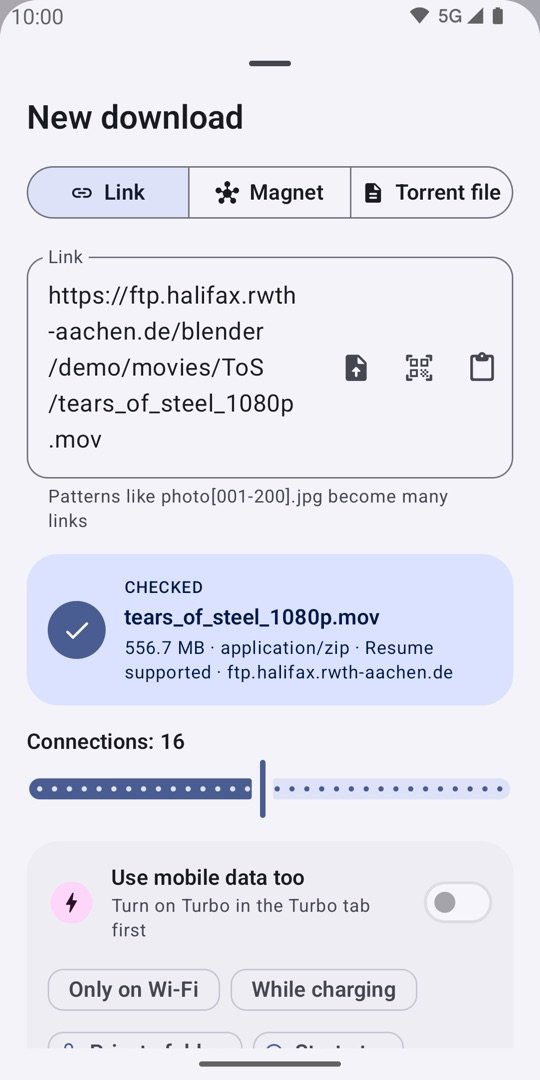
- Link · Magnet · Torrent file. Three tabs. Link takes one or more web links; Magnet takes a magnet link; Torrent file lets you pick a .torrent from Downloads, Drive or any file app.
- The link box, with three buttons: import links from a text file, Scan a QR code, and Paste. Several links, one per line, become several downloads. A pattern like
photo[001-200].jpgbecomes 200 links. - Checked. The app contacts the server once and shows the file name, size, type, whether Resume supported (one connection only when not), and the site. A web page instead of a file says This is a web page, not a file and offers Open in browser.
- Connections. A slider from 1 to 32. More connections help on servers that limit each one; the default lives in Settings › Downloads › Connections per download.
- Use mobile data too. Splits this file over Wi‑Fi and mobile data. Turn on Turbo in the Turbo tab first.
- Only on Wi‑Fi · While charging. The download waits until the condition is met and pauses when it isn't.
- Private folder. Saves the file inside the app, hidden from the Gallery, behind the fingerprint lock if you set one.
- Start at… A time; the download waits until then. A time already past today means tomorrow.
- Checksum (optional) and Add a mirror link: paste an MD5 or SHA-256 from the download page to verify the file at the end, or another link to the very same file to download from several servers at once.
- Download. With several links the button reads Add N downloads.
For videos and music, the app asks Watch or download?: Watch and download opens the player at once and keeps the file; Only download doesn't open the player; Just watch, don't save streams it and keeps nothing.
Five ways in from other apps
Share a link
In any app, tap Share and choose Aero Downloader. The Add sheet opens with the link checked.
Tap a file link
Links ending in .zip, .rar, .7z, .apk, .iso, .mp4, .mkv, .mp3, .pdf, .exe or .torrent, and magnet links, offer Aero in Android's "Open with" box. Firefox, Via and Kiwi can hand every download over.
Copy a link
Open Aero and a Copied link card offers Download (or Open in browser for a page). Or tap the Download link Quick Settings tile.
Select text
Select text with a link in any app and tap Download with Aero in the menu next to Copy and Share.
Browse inside
Open the page in Aero Glide. Any download it starts comes to Aero; the sparkle and a long press find the rest.
To stop other apps from offering Aero for links and files, turn off Settings › Downloads › Open links from other apps. Sharing to Aero always works.
Many files at once
- Several links: paste them one per line. The sheet counts N links found.
- A list file: the file button imports links from a .txt file.
- Numbered sets: files like
movie.part1.rar … part9.rarorarchive.001 … .012are downloaded in order as one card. Archive volumes stay separate for your extractor;.001parts are joined into the original file when the last one lands. - Mirrors: add the same file from several servers. Each link is checked to hold the very same bytes, then chunks come from all of them, so their speed caps add up.
Turbo
Turbo splits a file into parts and pulls some over Wi‑Fi and some over mobile data at the same time. The faster link takes more parts, and when the queue runs dry the mobile workers hand their part back so Wi‑Fi finishes the tail. It helps most when Wi‑Fi is slow or crowded, or when the server limits each connection. Turbo is off until you turn it on, so mobile data is never used by surprise.
Turning it on
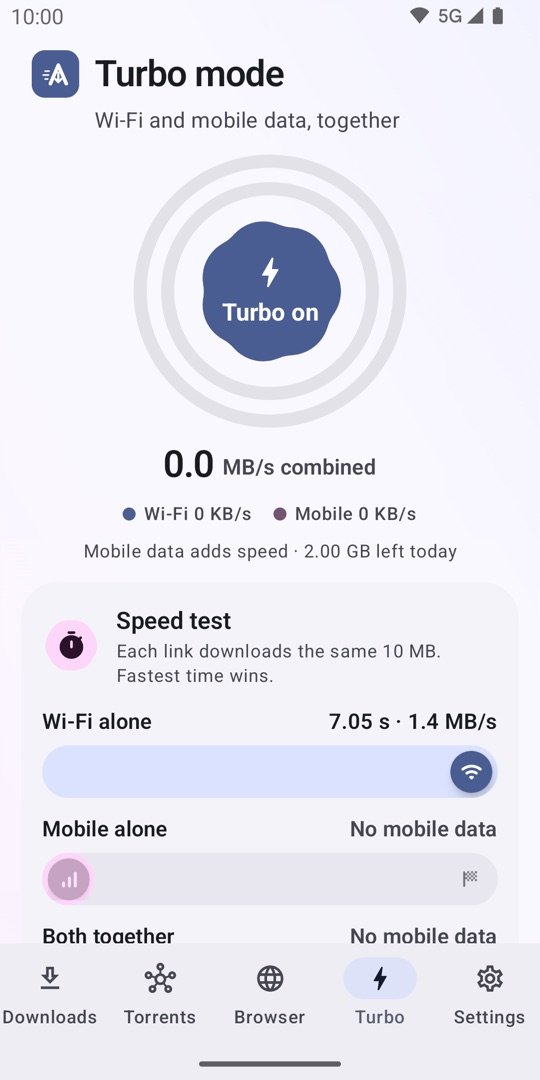
- Open the Turbo tab and tap the big button in the middle of the rings. It reads Turbo on and pulses while it works. (The switch on the Downloads screen's Turbo card does the same.)
- Under it, the combined speed and the Wi‑Fi and mobile shares update live while something downloads. A hint says how much of today's budget is left.
- For one download only, use Use mobile data too in the Add sheet.
Mobile data per day
Set a daily budget in the Turbo tab. Turbo stops using mobile data at that limit and the download carries on over Wi‑Fi. The counter resets at midnight. The speed test tells you before it runs about how much data it will use.
When to use mobile data: the rules
- Only when Wi‑Fi is slow (below 10 MB/s): don't spend data when Wi‑Fi is already fast.
- Never while roaming, on by default, to avoid roaming charges.
- Ask before big downloads: a question before a download over 500 MB uses mobile data.
- Save battery: Turbo turns off below 20% unless the phone is charging.
Two SIMs
Android sends data through one SIM at a time and apps can't change that, so Turbo pairs Wi‑Fi with your data SIM. Change data SIM in the Turbo tab opens the Android setting to pick which one.
The speed test
A time trial on your own phone: the same 10 MB is downloaded three times, over Wi‑Fi alone, Mobile alone and Both together. Each lane shows its time and speed; the fastest is marked, and the headline says how much faster Turbo was than your best single link, or that there was little gain because one link or the server is the limit. The bytes are discarded. Test again repeats it; the button is greyed while you're offline. (The home page has a model of this test you can play with.)
Why Turbo isn't faster on some links: a server that sends at most, say, 2 MB/s to anyone is the bottleneck, and a second network can't change that. Turbo shines on fast servers and slow or crowded Wi‑Fi.
Managing downloads
A download card
Each card shows the file's icon by type, its name, 93.1 MB of 338.6 MB · 3 min left, a wavy progress bar, and chips: the percentage, Play now for video and audio, 16 parts, and the path (Wi‑Fi or Wi‑Fi + Mobile). The round button pauses or resumes. The ⋮ menu has Open, Share, Retry, Use a fresh link, Refresh the link in the browser, Remove and Remove and delete file.
What the statuses mean
| Waiting for a free slot | More downloads are running than Downloads at once allows. It starts when one finishes. |
|---|---|
| Waiting for Wi‑Fi · Waiting for charging | You chose Only on Wi‑Fi or While charging for it. |
| Starts at 23:00 | You set a start time, or the download window hasn't opened yet. |
| Waiting for the internet | The phone is offline. Downloads carry on by themselves when it's back. |
| Trying again shortly · 1 of 5 | The server or network failed. The app retries up to 5 times, waiting longer each time. |
| Needs a username and password | The server asked for a login. Tap the card to sign in; it's remembered for that site. |
| Paused · Failed | Paused by you, Android or the battery rule; or every retry failed. Resume or Retry from the card. |
Pause, resume, and downloads that survive anything
- Pause and resume any time. Progress is saved every second, so a restart, an app update or a dead battery loses nothing.
- Pause all and Resume all sit above the list and in the notification. Exit in the notification closes the app.
- Link expired? Open the page again, copy a fresh link, and tap Use a fresh link on the download. If the file is the same, the finished parts are kept; if it changed, it starts over and says so. Refresh the link in the browser opens the page in Aero Glide and waits: tap the file there and the download carries on.
- Swiping the app away in Android's task manager pauses everything; Resume all starts it again.
Speed and connections
- Settings › Downloads › Connections per download: the default for the Add sheet's slider, up to 32.
- Downloads at once: how many files run at the same time; the rest wait for a free slot.
- Limit speed: a cap for all downloads together, so calls and video keep working on the same Wi‑Fi.
- Servers that want fewer connections: when a server says "too many", the app remembers and uses fewer next time. Forget one to try the full number again.
Sorting, filtering and bulk actions
The chips above the list filter by type. The ⋮ menu's Sort offers newest or oldest first, name A–Z or Z–A, largest or smallest first. Select turns on tick boxes with Select all, Start all, Remove N downloads, Remove finished, Copy links and Share links.
Files a server names wrongly, and checksums
Many servers send every file as a generic type, so a video would land as video.bin. Aero reads the first bytes of each file and knows about 40 types, so the name gets the right extension and the file opens. If you pasted a checksum when adding, the file is verified (MD5, SHA-1 or SHA-256) when it finishes.
Logins and the right browser name
A server that answers "401, who are you?" gets a Sign in dialog; tick Remembered for this site and the login is kept per host, on the phone, and sent only there. Manage them under Settings › Downloads › Site passwords. Some servers only send files to browsers they know: User-Agent for downloads lets you pick App default, Chrome on Android or Windows, Firefox, Safari on iPhone, or a custom string. Links saved from Aero Glide keep that page's own cookies and browser name automatically.
Watch while it downloads
Tap Play now on a downloading video or song and the built-in player starts with the parts that have arrived. Seek ahead and the player waits for that part (Waiting for this part to download…) while the downloader fetches it first. Pause the download and the player says so. For torrents, turn on In order so the pieces arrive from the start.
Just watch, don't save
From the Watch or download? question, or the browser's long-press menu, Just watch (or Just listen) streams a link straight from the internet and keeps nothing. A chip in the controls shows the connection's speed and whether you're On mobile data or On Wi‑Fi.
In the player
- Tap to show controls: 10 seconds back and forward, play/pause, Speed, Rotate.
- Enhance opens Volume boost (above 200% the sound may crackle) and Picture: brightness, contrast, colour, sharpen, and resolution (Original or 2× sharp, which makes small videos look crisper). Reset puts everything back.
- Movies with several audio tracks (Hindi + English) or built-in subtitles, like MKV files: pick the audio track and subtitles from the player's menu.
- Downloaded files open in the same player from the Files screen or a download card's Open.
A file whose video or sound format the phone can't decode shows a message; try Open with another player such as VLC from the Files screen.
Torrents
Adding a torrent
- Paste a magnet link in the Add sheet's Magnet tab, pick a file under Torrent file, tap a magnet or .torrent link anywhere in Aero Glide, or open one from another app ("Open with Aero").
- The card says Finding the file… while the magnet's details arrive, then lists the files inside; untick what you don't want and see the selected size.
- Turn on Download in order (play while downloading) to watch a video torrent as it arrives.
The Torrents tab
Each torrent shows Down and Up speed, Seeds · Peers, Time left, a Pieces map (done and missing), the Files list and, with Turbo on, the Turbo paths. Remove torrent asks whether to Keep files or Delete files. Torrents always save into the app's own folder, because the torrent engine can't write anywhere else; move finished files from the Files screen.
Settings → Torrents
| Keep sharing finished torrents | Seeding uses data and battery. Stops at the ratio below, or after a day. |
|---|---|
| Stop sharing at ratio | How much to upload compared with what you downloaded. |
| Limit upload | A cap for all torrents together, so sharing leaves room for your downloads. |
| Add public trackers | Helps slow magnets find peers; empty means the built-in list. Private torrents are left alone. |
| Network | DHT (magnets need it), Local peer discovery, uTP, UPnP and NAT-PMP, Incoming connections, Anonymous mode, Encryption (Prefer, Require or Off), Random port or your own port, connections for all torrents and per torrent, upload slots. |
Only download what you have the right to. Peers and trackers see your internet address; that is how BitTorrent works.
Aero Glide, the browser
The Browser tab is a complete browser built for downloading: it blocks ads and trackers, spots the files on a page, stops pop-ups, and sends every download to Aero with Turbo speed. Its start page lists what it does, with Try the demo page: a page inside the app that really loads ads, a video and a file so you can watch each feature work.
The address bar and start page
- The bar sits at the bottom by default (Bar at bottom in the menu, or Settings › Aero Glide Browser › Address bar at the bottom). It holds Back, Home, the address with the shield, the sparkle, the tab count and the ⋮ menu.
- Type a search or an address. The search engine is yours to pick: Google, Bing, DuckDuckGo, Brave, Startpage or Ecosia.
- The start page shows bookmarks, recent sites and recent downloads as tiles with each site's own logo. Long-press a tile to remove it or Forget this site.
- Hide bars while scrolling: scroll down and the bars slide away; scroll up and they return.
- Load pictures off saves mobile data: pages show without their images.
Tabs, private tabs and sleeping tabs
- The tab count opens a grid of cards with a picture of each page. New tab, Private tab, Close all, and a ↺ button for Recently closed. Tabs come back after a restart.
- A private tab has its own cookies and site data, wiped when the last private tab closes. Downloads made from it are kept like any other.
- Sleep idle tabs (Never, 5, 10, 30 or 60 minutes) frees memory from tabs you haven't looked at; they show a Sleeping chip and reload when opened. Playing tabs are never put to sleep.
- Duplicate in Aero Tools copies the current tab.
The ad blocker
The shield in the address bar counts the ad, tracker and crypto-miner requests dropped on this page. Tap it for the sheet: Everywhere in this browser (the main switch), Block ads on this site (turn it off to let a site you like show its ads), the hosts dropped most, and the total since you installed the app. The list is a bundled seed plus the StevenBlack hosts list and the NoCoin miner list, refreshed weekly. Under Settings › Aero Glide Browser › Ad blocker you can add Your block lists (links to hosts files) and see Sites with ads allowed. It never touches other apps, and on YouTube it does nothing, because YouTube's rules don't allow it.
Found on this page: the sparkle
- Open a page. When the sparkle's badge counts up, tap it.
- The sheet ranks every link on the phone and hides ads, icons and thumbnails. AI pick shows the best matches with a reason for each (playing on this page, high quality, matches the page title, download link…); All, Video, Pictures, Audio and Documents filter the rest. Nothing is sent anywhere.
- Tick what you want and tap Download N, or the arrow on one row. Select all and the scan button (X-ray the page) are at the top.
A player that streams in small pieces has no single file to save; Found shows what the page really loads, and HLS streams it finds can be saved as one MP4 (see Streams).
Press and hold
Hold a link for Open in new tab, Open in private tab, Download link, Copy link, Share link. Hold a picture for Open image in new tab, Download image, Copy or Share image link. Hold a video or audio for Play, Download, Just watch (or Just listen), Copy and Share. Email and phone links offer Send email and Call.
Pop-ups, cookie banners and sign-in walls
- Pop-ups: pages can't open new windows or jump to another site without asking. A bar says Pop-up blocked or Jump to another site blocked, with Open and Always allow here. The sites you allowed are listed under Settings › Aero Glide Browser › Site permissions.
- Cookie banners: Hide cookie banners (on by default) hides consent pop-ups and presses Reject for you where the site offers it.
- Sign-in walls: Hide sign-in pop-ups hides "Log in to see more" boxes that cover a page by themselves. Age checks and paywalls are left alone.
Translate, save, find, desktop site
- Translate in the menu: pick your phone's language, Hindi, English, Bengali, Telugu, Marathi, Tamil, Gujarati, Kannada, Malayalam, Punjabi, Urdu, Odia or Assamese. The page reloads through Google's website translation; Show original goes back.
- Save page: Save as PDF (through the print dialog), Save for offline (the whole page in one file, readable without internet; opening it from Files loads it in Aero Glide), or Screenshot of the page (as far as it scrolls). Saved pages appear in Files.
- Find in page, Desktop site, and in dark mode a Dark page tick per site for pages the darkening breaks.
Video in the background and in a small window
- Keep playing in the background: video and music in the browser carry on when you leave the app or lock the screen, with a notification that has Play, Pause and Stop; headset buttons work too.
- Pop out video: press Home while a video plays and it carries on in a small floating window (Android 8 and newer).
- Neither works on YouTube; see Limits.
Bookmarks, history and wiping
- The star in the menu's top row bookmarks the page; the same row has Share and Copy. Bookmarks and History have their own screens. Settings › Aero Glide Browser imports an HTML bookmarks file from Chrome, Firefox, Edge, Brave or Samsung Internet, and exports one.
- Quick wipe, in the menu and as a Quick Settings tile: closes private tabs, wipes their cookies and site data, and locks the private folder.
- Clear data in Aero Tools: history, cookies and logins, cached pages, site data, each with a tick box.
Aero Tools and Developer tools
The ⋮ menu is a sheet of tiles: New tab, Private tab, Downloads (with its count), History, Find in page, Translate, Save page, Ad blocker, Desktop site, Bar at bottom, Quick wipe and Aero Tools. Aero Tools holds Duplicate, Scan QR, Other browser (open the page elsewhere), Clear data, Dark page and Live TV, then Developer tools: Page source, Import cookies (paste a cookies.txt export or name=value lines for the current site) and Log in elsewhere, for sites that only log you in from a full browser: log in there, export its cookies, import them here.
Site fixes
Some sites need more than the host list to behave. Settings › Aero Glide Browser › Site fixes shows the rules version and date; a signed update is fetched daily, and Check now fetches it at once. The app only accepts rules carrying the developer's signature.
Aero Glide on your home screen, buzz and sounds
- Settings › Aero Glide Browser › Add Aero Glide to the home screen pins its own icon that opens straight into the browser. Long-pressing the app icon offers the same shortcut.
- Settings › General › Buzz and sounds: a short vibration (on by default) and soft sounds (off by default) when a file is found, a download starts or a tab closes.
Files and the private folder
The Files screen
The folder icon in the Downloads header opens Files: finished downloads as a grid, by type (Video, Audio, Pictures, Documents, Archives, Apps, Torrents, Subtitles, Other), with how much you've downloaded. Tap to open in the player or the right app; long-press or use the menu to share or delete.
Where files go
- By default in the phone's Downloads folder, under Downloads/Downloader, so other apps and your file manager see them.
- Settings › Downloads › Download folder: Choose a folder anywhere, or Back to Downloads. If a chosen folder becomes unreachable (an SD card removed), files go to Downloads until you choose another.
- Sort into folders by type puts finished files into Video, Music, Documents… folders inside the download folder.
- Torrents stay in the app's own folder.
The private folder
- Tick Private folder in the Add sheet for one download, or turn on Save to the private folder by default in Settings.
- Private files stay inside the app and never show in the Gallery or other apps.
- Turn on Lock the private folder: fingerprint, face or your screen lock before private files show. It locks again when you leave the app, and Quick wipe locks it at once. The phone needs a screen lock set up first.
Streaming video and Live TV
Saving a stream
An HLS stream (.m3u8) or a DASH stream (.mpd) is many small pieces. Add its link, or pick it in Found, and Aero downloads the pieces, picks the best quality offered, and joins them into one MP4 without re-encoding. The card shows N of M pieces. Copy-protected streams can't be saved.
Live TV
- Open Live TV from the ⋮ menu on the Downloads or Browser screen.
- Tap Add a playlist and paste the link to an M3U playlist you have (Paste link reads the clipboard). Any .m3u link you open in the app that lists channels goes there by itself.
- Channels are listed by group with a search box. Tap one to watch; the arrows step to the previous or next channel, and a speed chip shows the connection.
Aero doesn't provide any channels or playlists. Add only playlists you have the right to watch; the streams come from the playlist's publishers.
Automation and battery
Per download
In the Add sheet: Start at… a time, Only on Wi‑Fi, While charging. They combine: a download can wait for 23:00 and for the charger.
Settings → Automation
| Download only in a time window | For night data packs: set when the window starts and ends. Downloads wait for it to open and pause when it ends. A window that ends the next morning runs overnight; the same start and end time means all day. |
|---|---|
| Start exactly on time | Asks Android's exact-alarm permission. Without it the window may open or close up to an hour late. |
| Close the app when the window ends | Running downloads wait for the next window, then the app closes. |
| Close the app when all downloads finish | Once nothing is downloading or waiting its turn. Paused downloads don't count. |
| Keep the screen on while downloading | Only while the app is open on the screen. |
| Carry on after a restart | Interrupted downloads continue by themselves after the phone restarts or the app updates. After a restart, a notification Downloads stopped by the restart · Tap to carry on may appear when Android needs a tap first. |
| Clear finished from the list | Finished downloads older than a number of days leave the list. Only the entries go; the files stay. |
Battery
- Settings › Downloads › Battery › Pause downloads when the battery is below a percentage; they carry on when it charges. A banner on the Downloads screen says so.
- Keep downloads alive in the background shows whether Android may stop the app to save battery; tap it to open Android's battery list and choose Unrestricted for Aero Downloader.
- Turbo's own rule turns mobile data off below 20% unless charging.
Notifications
A progress notification with Pause all, Resume all and Exit; a Download finished notification; optional Sound and Vibrate when a download finishes.
Proxy
Settings › Proxy: Use a proxy, HTTP or SOCKS5, host, port, optional username and password. Every download, torrent and browser page goes through it. Leave it off unless you need one.
Backup and restore
Settings › Backup & restore: Save a backup writes one file with your settings, bookmarks, download list and history; Restore a backup brings them back on a new phone. Site passwords are not included, and restored downloads start paused.
Every setting, by group
Settings is a list of groups; each opens its own page with a back arrow. Type to find a setting:
| General | When the app opens (Downloads, Browser, Last used). Theme: Wallpaper colours (Android 12+), Colour (a hue slider), Dark mode (Phone, Light, Dark). Buzz and sounds: Vibrate on browser actions, Sounds on browser actions. |
|---|---|
| Downloads · Where files go | Download folder, Choose a folder, Back to Downloads, Sort into folders by type, Save to the private folder by default, Lock the private folder. |
| Downloads · Speed | Connections per download (up to 32), Downloads at once, Limit speed, Servers that want fewer connections (with Forget). |
| Downloads · How downloads behave | Retry failed downloads by itself (up to 5 times), Open links from other apps, User-Agent for downloads, Site passwords, Notifications (Sound and Vibrate when a download finishes). |
| Downloads · Battery | Pause downloads when the battery is below a percentage; Keep downloads alive in the background (opens Android's battery list). |
| Automation | Download window with start and end times, Start exactly on time, Close the app when the window ends, Close the app when all downloads finish, Keep the screen on while downloading, Carry on after a restart, Clear finished from the list. |
| Torrents | Keep sharing finished torrents, Stop sharing at ratio, Limit upload, Add public trackers, Network: DHT, Local peer discovery, uTP, UPnP, NAT-PMP, Incoming connections, Anonymous mode, Encryption, Random port or Port, Connections (all torrents, per torrent), Upload slots per torrent. |
| Aero Glide Browser · Browsing | Search engine, Load pictures, Address bar at the bottom, Hide bars while scrolling, Sleep idle tabs, Hide cookie banners, Hide sign-in pop-ups, Keep playing in the background, Pop out video, Import bookmarks, Export bookmarks, Add Aero Glide to the home screen. |
| Aero Glide Browser · Ad blocker | Block ads and trackers (hosts on the list, updated weekly), Your block lists (Add a list), Sites with ads allowed. |
| Aero Glide Browser · Site permissions | Sites allowed to open pop-ups. |
| Aero Glide Browser · Site fixes | Rules version and date, Check now. |
| Proxy | Use a proxy, HTTP or SOCKS5, Host, Port, Username (optional), Password. |
| Backup & restore | Save a backup, Restore a backup. |
| Help | FAQ (the questions from this guide's troubleshooting, inside the app), Show the tour again. |
| About | Version, What it does, Open source licences, Share the app, Rate on Google Play, More apps from Trilokia. Updates from Google Play show as a bar at the top: Download, then Restart; your downloads carry on after. |
Limits and policy
- YouTube: Google Play holds apps to YouTube's rules, so Aero doesn't download from YouTube, block its ads or play it in the background. The shield sheet says so on YouTube pages, and Found stays empty there.
- Copy-protected streams can't be saved.
- Other apps' ads are never blocked; the ad blocker lives inside Aero Glide only.
- Your rights: please download only files you have the right to download, and add only Live TV playlists you have the right to watch.
- Phones: Android 7.0 and newer; wallpaper colours need Android 12; pop-out video needs Android 8. The layout adapts to tablets and foldables with a side rail. The app is in English and Hindi.